Never Blank Out on Live Calls
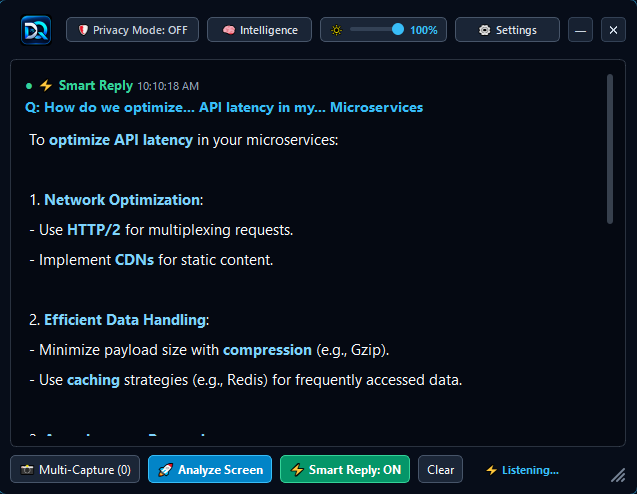
Turn on Smart Reply to listen to live call audio and stream concise, structured answers and talking points right as the conversation unfolds.
DoQuietly listens to live calls to generate instant Smart Replies, analyzes your screen in one click, and keeps your personal workspace private during screen sharing with Privacy Mode.
Windows 10/11 (64-bit) · Complimentary Pro Trial (15 Priority Actions) · No Credit Card or API Key Needed.
ℹ️ New release install tip: If Windows SmartScreen appears, click More info → Run anyway.
Watch instant code & screen analysis, live Smart Replies during a call, and one-click Privacy Mode hiding the overlay from screen sharing.
🔊 Turn sound on · Recorded live on Windows 11
Stop scrambling across browser tabs when a tough question comes up during a client call, technical review, or live presentation.
Turn on Smart Reply to listen to live call audio and stream concise, structured answers and talking points right as the conversation unfolds.
Use Analyze Screen (Ctrl+.) or Multi-Capture (Ctrl+/) to read long documents, dashboards, or code and get clear explanations together.
Enable Privacy Mode with one click so your personal AI overlay stays out of Zoom, Google Meet, or Teams screen shares—only your presentation is visible.
Generic AI answers sound robotic. With DoQuietly's built-in Intelligence menu, your copilot understands who you are, what you are presenting, and how you prefer to communicate.
Ctrl+Space.DoQuietly is a desktop AI copilot built for live note-taking, meeting preparation, technical reference, and clean screen-sharing workflows on Windows.
Users are responsible for using DoQuietly in compliance with applicable laws, call-recording consent rules, employer guidelines, and platform policies. Unauthorized use in restricted or proctored assessments is strictly prohibited.
No complicated API keys or virtual audio cables. Install, verify your email, and start your Complimentary Pro Trial.
Download DoQuietly-Setup-1.0.0.exe and install it on any 64-bit Windows 10 or Windows 11 PC. If Windows SmartScreen prompts on first launch, click More info → Run anyway.
Enter your email for a quick one-time verification code to unlock your Complimentary Pro Trial (15 Priority Actions)—no credit card required.
Toggle Smart Reply, press Ctrl+. to analyze your screen, or press Ctrl+Space anytime to show or hide the overlay.
When you install DoQuietly and sign in with your email OTP, you automatically receive a Complimentary Pro Trial with 15 Priority Actions so you can experience full Privacy Mode, Smart Reply, Analyze Screen, and Multi-Capture on your own PC before upgrading to DoQuietly Pro.
No. DoQuietly works completely out of the box with managed real-time voice and vision models included in your trial and Pro subscription. There are no API keys to generate or separate usage bills to manage.
Privacy Mode uses native Windows display affinity controls to exclude your personal DoQuietly overlay from standard screen-sharing windows (such as Zoom, Google Meet, and Microsoft Teams), keeping your presentations clean and distraction-free.
Press Ctrl+Space to instantly show or hide the DoQuietly window, Ctrl+. to trigger Analyze Screen, and Ctrl+/ to take a quick Multi-Capture screenshot.
After purchasing a Pro Subscription Key, open DoQuietly, click Settings → Enter Subscription Key (or paste it directly on the login screen), and your PC will unlock unlimited access immediately.
DoQuietly is built for 64-bit Windows 10 and Windows 11 computers with standard Windows audio playback devices (WASAPI loopback support).
Windows Defender SmartScreen commonly shows a prompt for newly released independent desktop applications until enough Windows PCs have installed them to build publisher reputation. To proceed with installation, simply click More info and then select Run anyway.